Getting Started with Campaign Arks
From a blank campaign to your first session, and what's worth knowing along the way
June 3, 2026 · Updated September 27, 2026
Welcome aboard. Campaign Arks is where your campaign lives: your world, your prep, and a record of what happened at the table, with an assistant that has read all of it. When you want help recapping last session, fleshing out an NPC, or planning the next game, it already knows your campaign. You never have to paste your notes into a chat box.
It works with whatever you run. GMs here play D&D 5e and 5.5, Vampire, Daggerheart, Call of Cthulhu, Blades in the Dark, and plenty of homebrew.
Most of what follows comes from questions new GMs ask in our Discord during their first week.
The short version
- Create a campaign and talk through the setup interview. Bring any notes you already have.
- Keep the campaign description about how you run the game. Lore goes in documents.
- Create your first Session and give it a play date.
- Add documents as your game needs them, and link them with
@. - Use Chat to brainstorm and Agent to make changes. Nothing changes without your approval.
- After each game, write a few lines in the Session Log. The assistant reads it the next time you prep.
Setting up your campaign
When you create a campaign, the setup assistant interviews you about your world. GMs often tell us the questions are the best part, because they surface decisions they hadn't made yet. You don't need to start from a blank page. Paste in your notes, a half-finished setting doc, your house rules. The assistant sorts them into proposed documents, shown as cards beside the chat, and you choose which ones to keep.
The campaign description, under Manage Campaign, is your session zero: premise, tone, system, house rules, and how you run your table. The assistant reads it as the frame for everything else. It's tempting to paste your backstory in there too. Save that for documents; the section on keeping the assistant accurate explains why.
Your first session
New campaigns open with a short checklist on Campaign Home. The quickest way past it is to create a Session (New Document → Session Prep). Campaign Home then switches to its everyday layout, with your last, current, and next sessions across the top. Give each Session a play date so they stay in order.
Build as you go
Resist the urge to enter your whole world before the first game. Add an NPC when the party meets her and a location when they travel there. One long-running GM in our Discord spent a single afternoon on setup and came away with more than twenty documents, only five of which they wrote by hand.
When you do create something, take a few seconds to set the fields at the top of the document. An NPC's relationship to the party, a location's danger level, whether a magic item has been awarded or lost: the assistant reads these as the current state of your world, so you don't have to explain it every time.
Lore status is worth learning early. Lore can be looming (foreshadowed but not yet revealed), foreground (in play and known at the table), background (texture), historic (settled past), or archived. It's how the assistant knows the ancient war is history while the cult's return is still a secret.
Link documents as you write by typing @. Links make your notes easier to move around in, and they're how the assistant follows the threads between an NPC, her faction, and the town she lives in.
Finding your way around
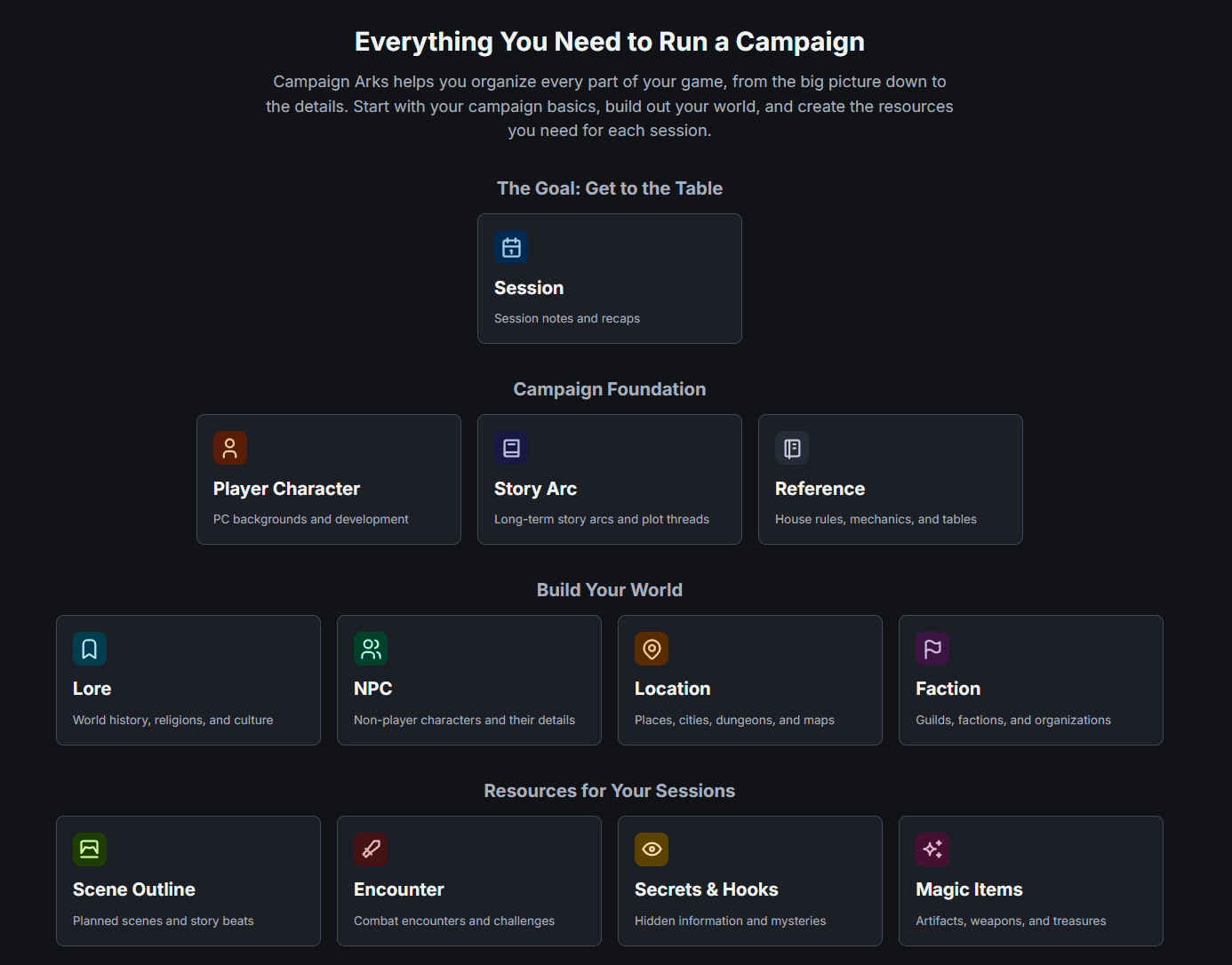
The sidebar has four main areas:
- Campaign Home, under your campaign's name, is your prep dashboard: sessions, player characters, story arcs, bookmarks, and recent edits.
- Knowledge Base holds your world: lore, NPCs, locations, maps, factions, and references.
- Play Materials holds what you bring to the table (scenes, encounters, secrets and hooks, and magic items) on a board that shows what's still an idea, what's ready, and what you've used.
- Campaign Workshop is where you talk with the assistant about the campaign as a whole and bring in existing material.
Most of your time goes into documents. Open one and the assistant sits alongside it. Everything saves as you type. Campaign settings, sharing, and player invites live behind Manage Campaign on Campaign Home.
Working with the assistant
In any document, the assistant sidebar has two modes. Chat is for thinking out loud: three hooks for this NPC, or what a faction really wants. It can see your campaign and the page you're on, and it doesn't change anything. Agent does the work. It reads through your campaign and suggests edits to the document. Agent comes with Pro.
Agent's changes arrive as suggestions in the document, and you accept or reject each one. You always have the final word. Documents the assistant proposes, during setup or in the Workshop, don't exist until you accept them.
Give Agent one clear job at a time. "Tighten this paragraph" or "add three rumors to the tavern section" goes well. "Fix this whole document" leaves you with a pile of suggestions to sort through. If it ever removes something without putting the new version back, tell it "you didn't replace that properly" and it will redo the edit. That exact line has been posted in our Discord a hundred times.
You never need to re-brief it. Change your notes, send your next message, and the assistant works from what's there now.
The Campaign Workshop is for bigger-picture conversations. By default it proposes new documents. On Pro, switch on Advanced above the chat and it can search and edit what you've already written, too.
Running a session
A Session is your plan for one game night. Pull in the scenes, encounters, secrets, and items you'll need from the Play Material tab beside the document. Each one arrives as a checkbox.
When your players sit down, click Run session. Play Mode puts your plan on one side and your notes on the other, along with a Play Assistant (Pro) that can look up a name or improvise a shopkeeper mid-scene. Tick things off as you use them, and they move to Used on your Play Materials board.
Afterward, write the Session Log: what really happened, including everything that went off script. A few lines is enough. This is the habit that matters most, because the assistant treats your logs as the record of play. You don't need to spend a message updating the AI. The log does that.
On Pro, once a session's date has passed, Campaign Home offers Draft next session. It reads your recent logs and unused Play Materials and drafts the next Session, starting with a short triage of what it reviewed and flagged. Keep what's useful and cut the rest.
Keeping the assistant accurate
Your notes will disagree with each other, because prep is a plan and logs are what happened. When the assistant reads your campaign, it weighs things in this order:
- What you tell it in the conversation. You can retcon anything.
- Session Logs.
- Your world documents, read through their status fields. An NPC marked deceased stays dead.
- Sessions and Play Materials, which it treats as plans rather than facts.
- Story Arcs, which describe where you'd like the story to go.
The campaign description sits above all of this as the frame, and that's why lore doesn't belong there. The description has no status and no log to move it forward, so whatever's in it stays true forever. Put a plot twist in it and the assistant will keep treating the twist as upcoming long after your table has lived through it. Move that material into Lore, NPC, and Location documents, where statuses and logs can carry it from looming to historic.
If the assistant keeps bringing up something you've moved past, ask it where it got that. In Agent mode it names the document, and the answer is usually an old hook or a stray sentence you'd forgotten about. Fix the source instead of arguing with the symptom. The assistant also keeps a summary of your campaign that catches up a few minutes after you edit. You can read it under Manage Campaign.
Sharing with your players
There are two ways to bring players in, both under Manage Campaign → Players.
The player view link is a read-only page your group can open without an account. It shows only what you've chosen to share. Every document starts as GM only, and you switch it to Shared with players when you're ready. Lore, NPCs, locations, factions, references, magic items, and player characters can all be shared.
Invite to the table lets players join the campaign. They see your sessions and a shared Table Log they can write in from their phones during play.
To share a document but keep part of it hidden, type / and choose Secret. That passage stays off the player view. Click its tag to mark it Revealed once the party finds out.
For something on paper, open a document's Print view and save it as a PDF. Turn on Include referenced documents and a Session prints with every NPC, location, and secret it links to, which makes a handy binder for game night. It includes your secrets, so keep it behind the screen.
Credits and plans
Each plan comes with monthly credits that renew on the first of the month (UTC): 10 on Free, 100 on Pro, and 500 on Premium. Hover your plan badge at the top of the screen to see how much you've used.
Chat and autocomplete barely touch your credits, and the setup interview fits comfortably in the Free allowance. Agent replies cost more, especially when the assistant researches across your campaign. Importing files uses credits fastest, because it's charged by the page, so choose the pages you need.
Most features that need Pro show a badge where you'd use them. The full comparison and prices are under Plans & pricing. On a paid plan you can top up with credit packs from your Account page, and pack credits never expire.
Worth knowing
A few things GMs in our community wish they'd found sooner:
- Import material in the Workshop (Pro) turns a campaign bible or a stack of PDFs into proposed documents, keeping stat blocks and DCs as written. You can pause an import to steer it ("focus on major NPCs, skip minor characters") and review everything once it finishes. On any plan, you can paste text into the Workshop chat instead.
- If you run two parties in one world, describe Party A and Party B in your notes and tell the assistant which one you're prepping. A GM in our Discord worked this out, and it keeps the two groups from blurring together.
- To clean up a messy notes dump, ask Agent to "first remove the chat and discussion text, then structure this into one coherent document." One job at a time.
- Drop a portrait or a map straight into any document. To pin places on a map and link each pin to its location, create a Map document instead.
- Type
/for stat blocks, side-by-side columns, infoboxes, and boxed read-aloud text. - Autocomplete suggests the next few words as you type. Press Tab to accept or Esc to dismiss, and switch it off in the sidebar when it's in the way.
- Made a duplicate? Merge another document in… (Pro) folds one into the other. Every document also keeps a Version history, and deleted documents can be restored from the Workshop.
- Your campaign goes wherever you do. Export to Obsidian, under Manage Campaign, downloads the whole thing.
Getting help
The app is young and moving fast, so you'll hit the occasional rough edge. Tell us about it in the Discord, which is also the best place for questions this guide doesn't answer. The assistant can answer questions about the app too, including what your plan includes.
The assistant is eager to help and sometimes offers more than you asked for. You're the GM. Take what fits and reject the rest.
May your players adopt a reasonable number of goblins.
If you haven't signed up yet, you can start at campaignarks.com.